Access data in the OSDR
Go to the NASA OSDR home page.
Click on the “Data & Tools” tab at the top of the page
or click on the *Data Repository Explo*re Image
.png)
Select **“Data Repository”** to navigate to the list of studies (Or use this link).
Search for studies by entering text into the “Search Datasets” box.
On the right you’ll see the number of items per page, the default is 25, but this number can be increased to 50 or 100.
These lists are sorted based on “Release Date” as default, but can be adjusted to reflect “Relevance”, “study accession ID” # or the “Study title”.
On the left of the webpage, you will see some filters to help you identify related studies, select any combination of study features by ‘checking the boxes’ and this will change the number of studies being shown on the screen.
Each study is summarized by an image representing the model organism being investigated, the study title, organism, factors being investigated, assay types, release date, a description and a “Highlights”/ summary.
Clicking on either the image of the model organism or the title will open that study database and present the related metadata, primary data and if available processed data.
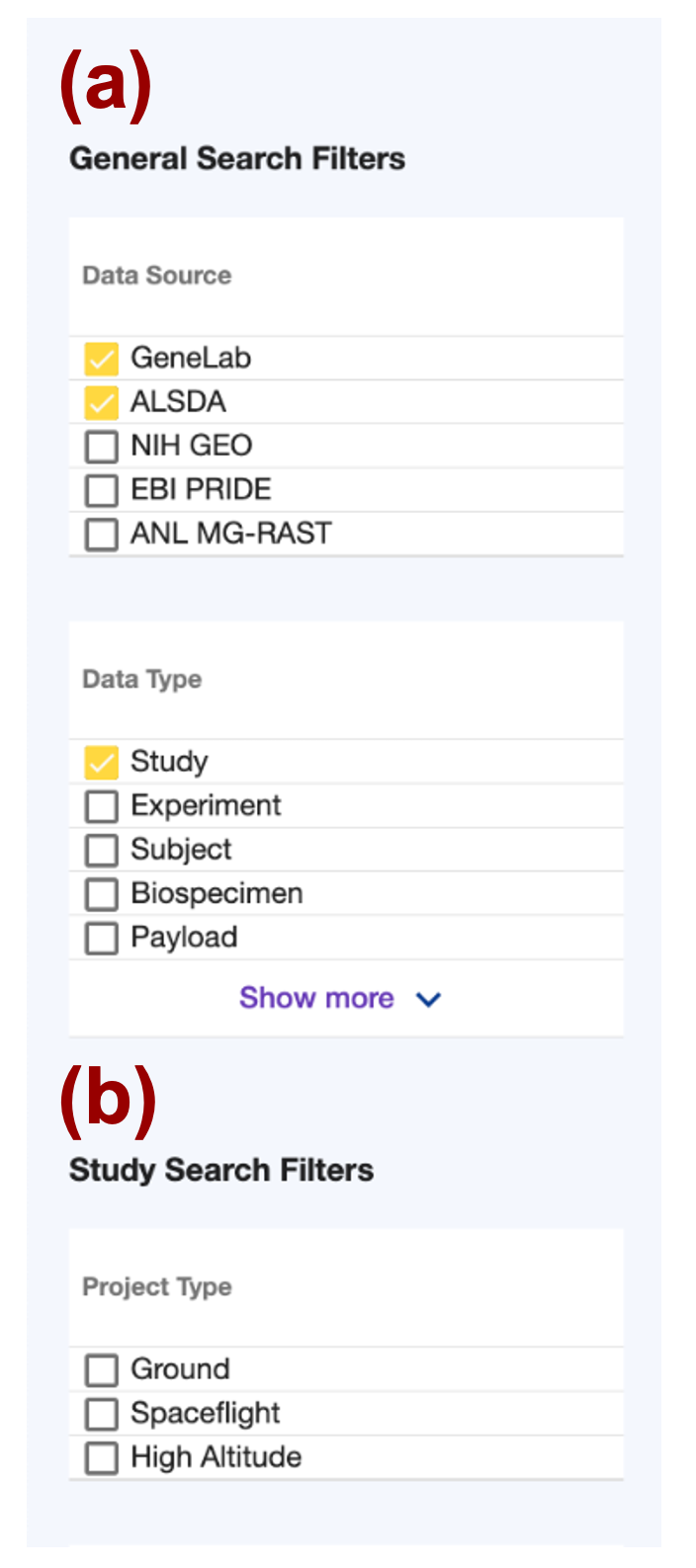
Section A, titled "General Search Filters," provides options for filtering data sources (GeneLab, ALSDA, NIH GEO, EBI PRIDE, and ANL MG-RAST) and data types (Study, Experiment, Subject, Biospecimen, and Payload). It also includes a "Show more" button. Section B, titled "Study Search Filters," offers project-type options for filtering studies, including Ground, Spaceflight, and High Altitude. The GeneLab, ASLSDA and Study data options have been selected and the boxes next to them are orange.
“General Search Filters”
Data Source
Data Type
“Study Search Filters”
Project Type
Assay type
Organism
Tissue
Factor
Search Bar
The search bar is a quick and easy way to filter through the data and can be used to create precise database queries.
OSDR provides users with a full-text search capability of the metadata for all datasets.
Full-text search terms can be a single word or multiple words with either Boolean, wildcards (asterisks *), or string (text).
Searches are case-insensitive concerning search term(s). To perform a search, enter a keyword or set of keywords, in the search box and either press ‘Enter’ or use your mouse to select the magnifying glass icon.
Search bar example: Search results can be sorted by relevance, release date, source, and title in ascending or descending orders. In addition, to see an overview of the study metadata, click on the image of a magnifying glass, (highlighted with a red dashed square) to show highlighted keyword search relevance.
Clicking on a study title will show all the detailed metadata for that study and provide further data and links or use the page navigator arrow(s) on the top right corner to go to the next page of search results.
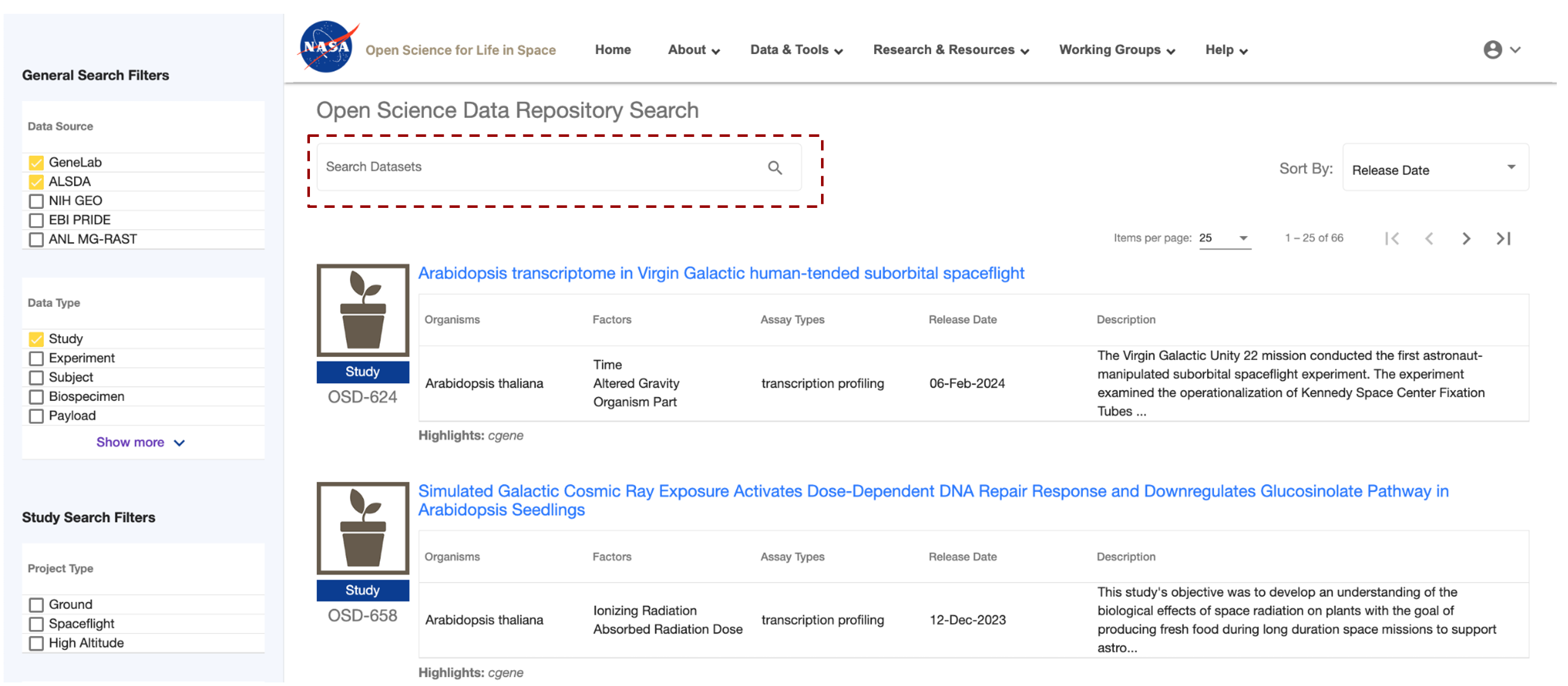
The NASA logo, website navigation menu, and page title are displayed in the header section. The left-hand side of the webpage contains the filters mentioned previously. In the center of the page, the “Search Datasets” box has been highlighted.
Single-word search
Below are some examples of searches.
Single-term search: These are quick and easy and usually create long lists of loosely connected studies.
Single-term example: Search results from searching the single term ‘genome’
Multi-word search
Choosing two or more keywords can quickly identify studies related to your area of interest.
Search results will contain all the search terms and in this example, filter down to 14 OSDR accessions.
Duel-word example: Search results from searching on multiple terms ‘genome ecotype’
.png)
The NASA logo, website navigation menu, and page title are displayed in the header section. The left-hand side of the webpage contains the filters mentioned previously. In the center of the page the “Search Datasets” box has been highlighted, and the term “genome ecotype” has been entered. This search identifies 14 studies that use these terms in their metadata.
Multiple-field searches
How to create efficient searches by searching multiple fields.
Multiple-term search: Search in multiple files such as general search filters, study search filters and keywords or phrases can be used to create concise lists of related studies.
Multiple-term search example: Search results from multiple-term search combined with an additional selection of “Spaceflight” specific “Project type” are shown below.
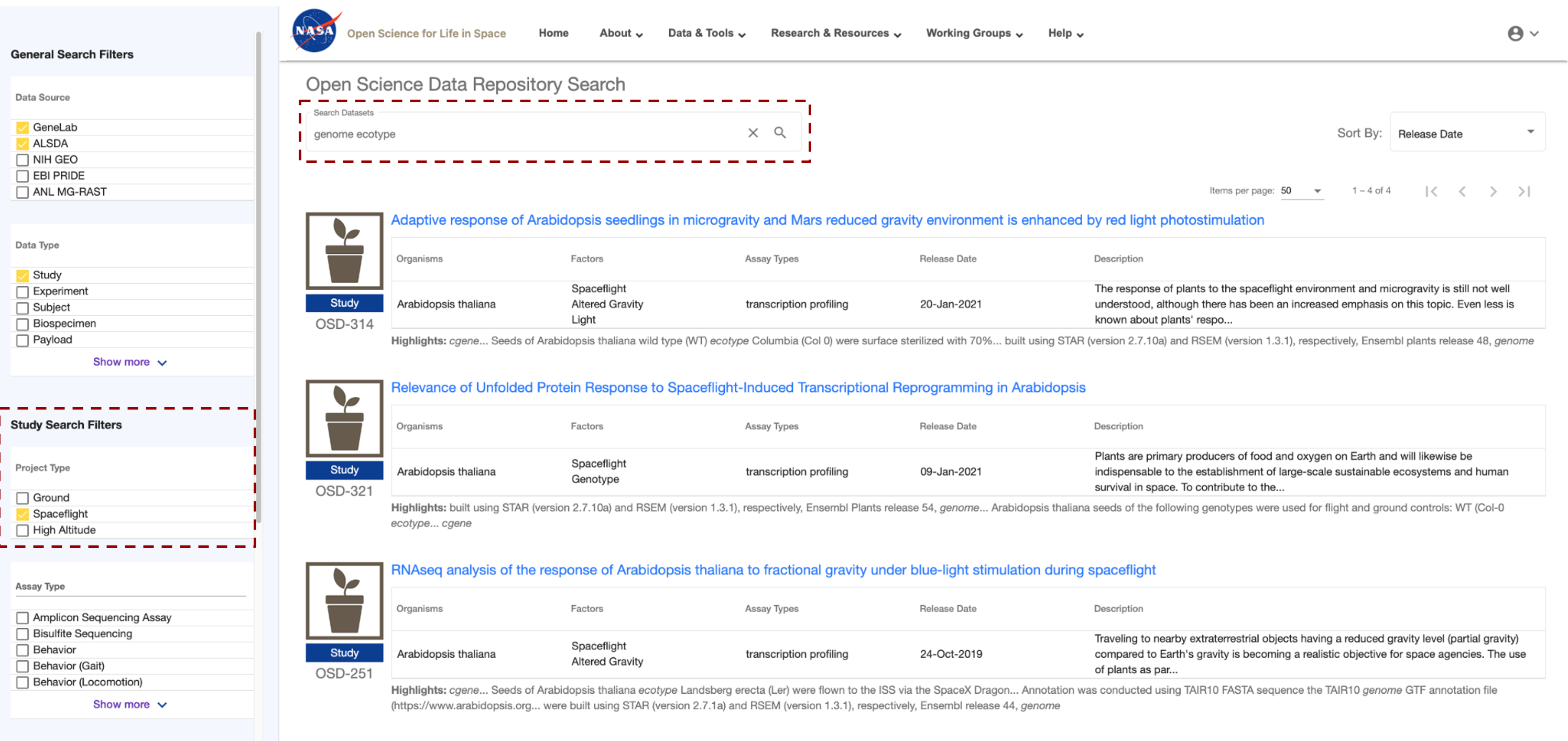
The left-hand side of the webpage contains the filters mentioned previously. In the center of the page the “Search Datasets” box has been highlighted, and the term “genome ecotype” has been entered. In addition, the “Space flight” has been selected as a factor and is highlighted with a red box. This search identifies 4 studies that use these terms in their metadata but only the first 3 are shown.
Boolean Operator Options
How to make your search more insightful or precise using defined boolean operators.
Please note that you may not use both the Boolean operators and double quotations together.
The resulting set is the same as searching for the terms ‘genome’ and ‘ecotype without the operator.
| Operator | |
| AND | ALL search terms must be present (default Boolean search) |
| OR | ANY of your search terms can be present |
| NOT | Exclude words from your search |
Double Quotation marks define search phrases as essential for a precise match requirement.
If multiple words are in double quotations, then those words must match exactly in the order given, as shown below:
Quotation example: Search results from searching the exact term “genome ecotype” by using quotation marks. In this example, no search results were due to a combination of keywords and Boolean operators that failed to match any sample in the database.
.png)
The left-hand side of the webpage contains the "genotype ecotype" search results. In the center of the page the “Search Datasets” box has been highlighted, and the term “genome ecotype” has been entered, this time in quotation marks. This search resulted in no matches being found.
Boolean NOT operator.
Refining search techniques to identify related studies.
Exclude studies containing the term(s) from your search using the minus prefix (-). This is the same as using the NOT operator which is the same as using the NOT operator.
Not operator example: Below is a search using the ‘NOT’ operator. genome ecotype –genotype.
.png)
The left-hand side of the webpage contains the "genome ecotype - genotypes" search results. In the center of the page the “Search Datasets” box has been highlighted, and the terms “genome ecotype - genotypes” are highlighted to show how Not operators can be used to adjust the search results.
Boolean AND operator.
How to use AND operators to make your search more precise.
Require term(s) in your search using the plus prefix (+). This is the same as using the AND operator.
An operator example: genome sequencing +WS ecotype
.png)
The left-hand side of the webpage contains the filters mentioned previously. In the center of the page the “Search Datasets” box has been highlighted, and the terms “genome ecotype + WS ecotype” are highlighted to show how AND operators can be used to adjust the search results.
Boolean * wild card operator.
How to use a * wild card to find closely related studies.
Search on unspecified portions of the search terms using an asterisk (*)
A *wild card Boolean operator example: genome ecotype * Gravity. In this example, we identified 2 studies with samples that received variable quantities of gravity as a study factor.
.png)
The left-hand side of the webpage contains filters with a Booealn wild card operator being used to define the gravity level. In the center of the page the “Search Datasets” box has been highlighted, and the terms “genome ecotype + * Gravity” is highlighted to show how unspecified “wild card” operators can be used to adjust the search result.
Federating data sources
How to add an external database to your search.
OSDA has integrated, commonly termed a data federation, with multiple heterogeneous external databases. Users can search across multiple databases in addition to OSDA. The links in the federated search results are to the authoritative external databases.
OSDA is currently federated with:
The National Institutes of Health (NIH) Gene Expression Omnibus (GEO)
The European Bioinformatics Institute (EBI) Proteomics Identification (PRIDE)
The OSDA repository does not contain copies of the data sets found in the external databases, GeneLab maintains metadata records (e.g., information about the data) of the external data sets in federated databases. These records are automatically updated to keep the GeneLab database search content up to date with the external databases.
To search in one or all of these databases, enter text search term(s) and select the desired databases as shown below. Federated search results are then shown. You may change the database selection(s) at any time and the search results will be updated accordingly.
In addition to searching the GeneLab Data Repository, federated data repositories can be included in the search.
Example: Below are examples of federated data repositories that can be searched.
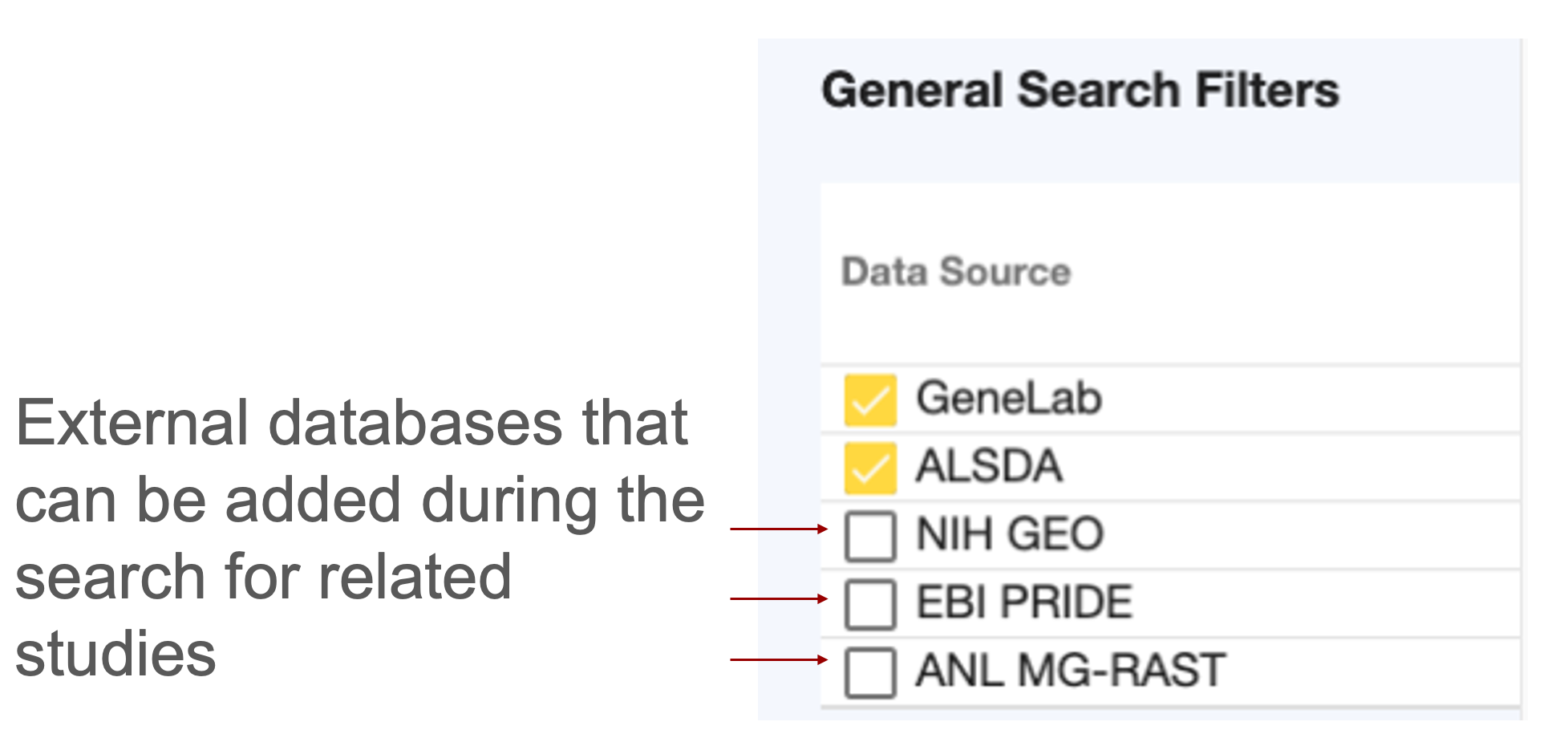
The user can select specific databases to be included in the general search filters. If the user does not have a specific database in mind GeneLab and ALSDA are automatically selected, these options can be left on or turned off or they can also add NIH GEO, EBI PRIDE and AML MG-RAST to search.
Study Search Filters
The filter box on the left can filter through the OSDR to find studies related to your expertise or interests.
In addition, OSDR offers filters that facilitate the search process for related studies within the GeneLab repository. These filters encompass Project Type, Factors, Organisms, and Assay Types. The menu associated with each category contains pre-populated terms derived from datasets included in the OSDR repository. It is noteworthy that the use of these filters is possible without the inclusion of any additional search terms.
After filter selection, the filter is immediately applied, potentially altering the number of search results displayed. Filter values are shown as text above the results as they are added. Multiple options from the same filter allow users to select more closely related studies.
For instance, to filter your search, choose ‘Spaceflight’ from the ‘Factors’ menu, followed by ‘RNA sequencing (RNA-seq)’ and ‘Seedlings’ from the ‘Tissue’ menu. OSDR will search for studies that have either of these terms as factors.
Users can change the filter terms they have selected by selecting the filter again from the drop-down menu or by clicking the “Clear” button. It is important to note that the “Clear” button only eliminates the filter conditions and does not erase any text search terms entered before the filters. In addition to keyword searches in the OSDA, users can also search using key factors from the metadata of the studies.
Example: Below is an example set of filters that can be used to identify studies with similar experimental designs.
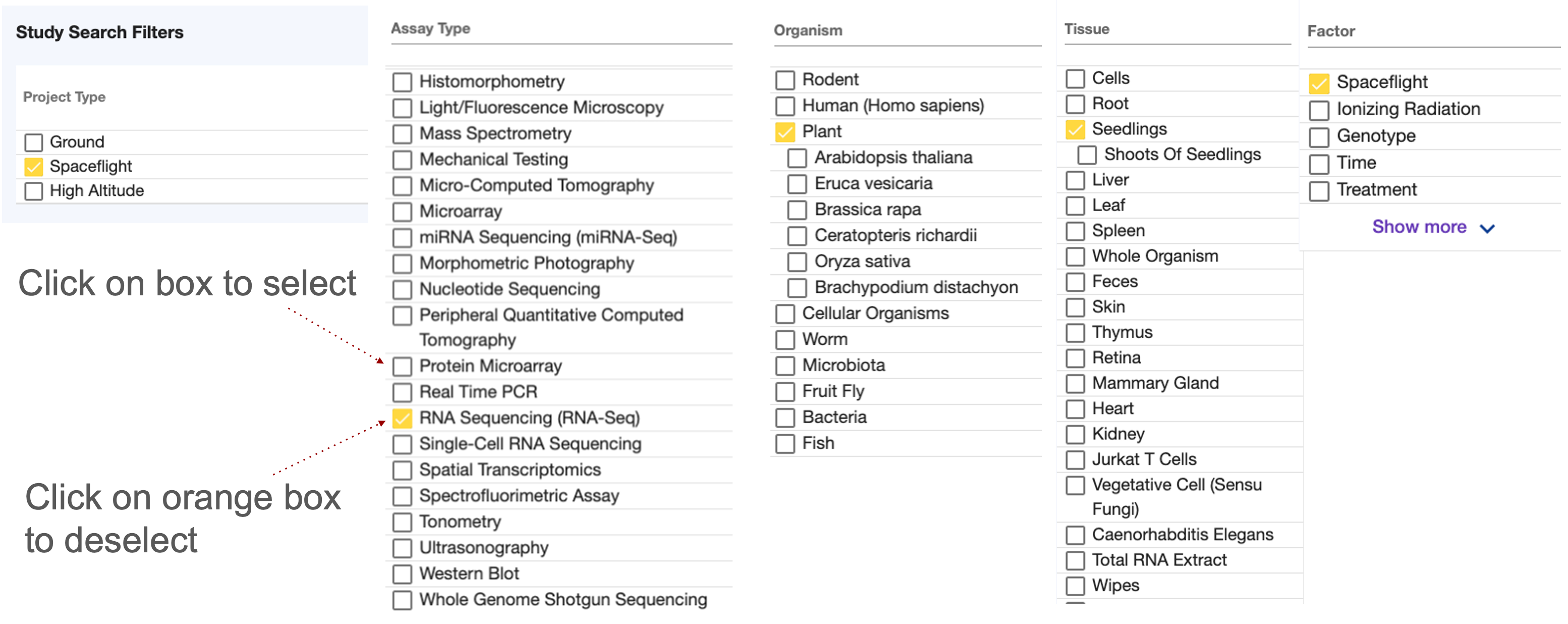
The Image shows a series of Filters grouped by Assay type, Organism, Tissue and Factor. Spaceflight, RNAseq, Plant and Seedling were selected.